

Set up a gateway
Before you start
Section titled “Before you start”- Your role must allow installing gateways. Administrators, managers and technicians have this permission.
- Open the phone app and turn on Bluetooth.
- Stay close to the gateway during setup.
1. Plug it in
Section titled “1. Plug it in”-
Mount the gateway in its final position. See Where to put it.
-
Connect the power supply.
-
Check that the green light is on . It stays on while the gateway has power.
2. Scan the label
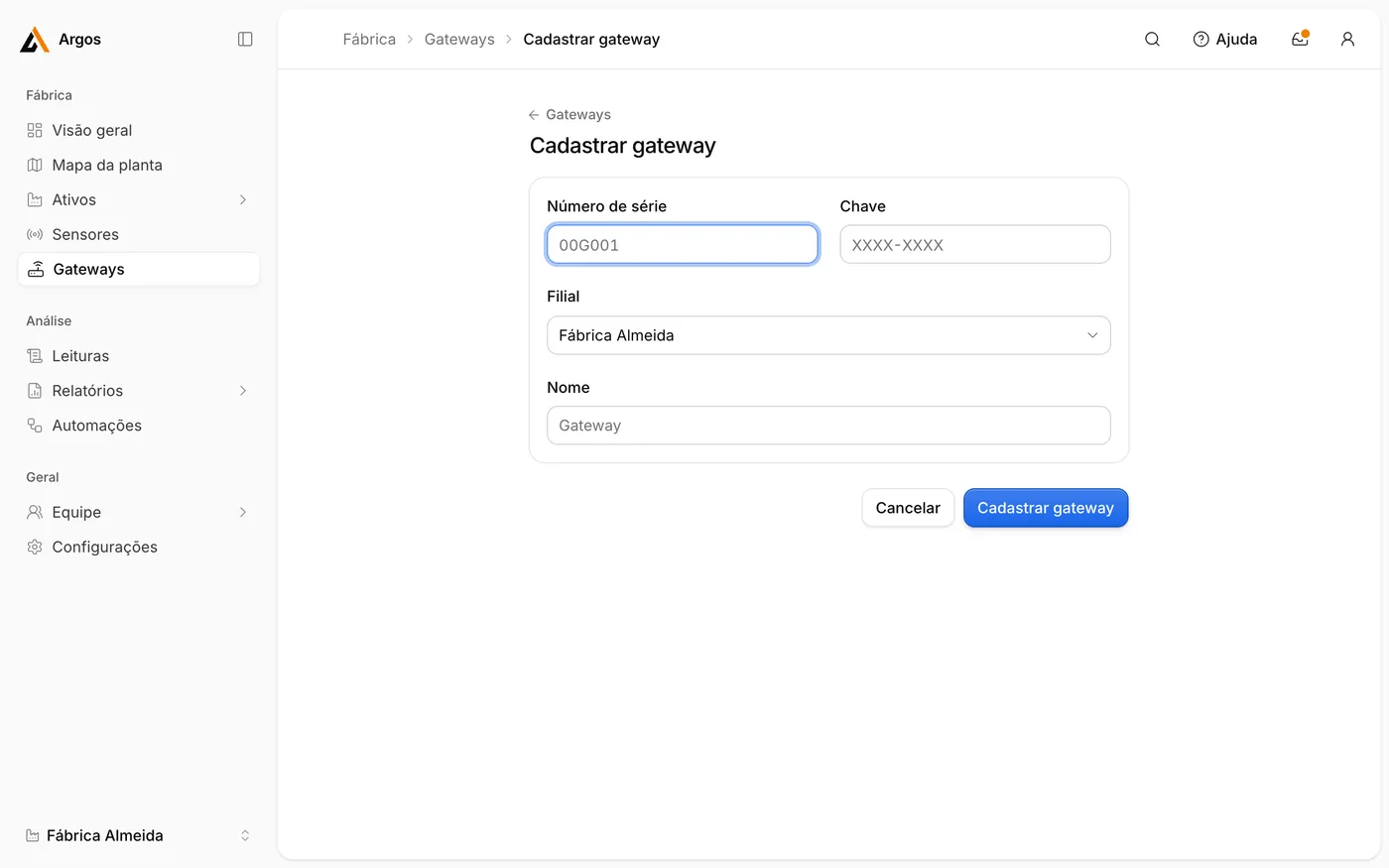
Section titled “2. Scan the label”The gateway label shows:
- Serial number: 6 letters and digits, for example
00G001. - Key (Chave): 8 letters and digits, for example
ABCD-1234. - QR code containing both.
-
In the phone app, tap Add gateway.
-
Scan the QR code on the label.
-
Select the Site and enter a Name for the gateway, for example Pump house.
-
Tap Register gateway.
3. Connect it to the network
Section titled “3. Connect it to the network”The app then asks How does the gateway reach the network?
-
Tap With a network cable.
-
Connect the Ethernet cable to the gateway. No further configuration is needed.
-
Wait until the red light stays on . This takes about 30 seconds.
-
Tap With Wi-Fi.
-
Stay near the gateway. The red and yellow lights alternate while setup mode is open. If they do not, press the gateway button briefly.
-
The phone connects to the gateway over Bluetooth. Select your Wi-Fi network from the list.
-
Enter the Wi-Fi password.
-
The app runs a connection test in three stages: network, internet and server. Wait until all three pass.
4. Done
Section titled “4. Done”The app shows Gateway online, and the red light stays on .
The yellow light comes on as soon as the gateway receives data from a sensor. A newly installed sensor makes first contact within 2 minutes.
Send the network details to IT
Section titled “Send the network details to IT”If your plant restricts outbound traffic, open the gateway in the app and tap Send network details to IT. It shares the requirement with your IT team:
The Argos gateway needs outbound access to
api.argossense.comon port 443 (HTTPS).